The messiest case for any permissions system is someone leaving the company. Their work has to land with whoever picks it up, their access has to end everywhere at once, and the reassignment often has to happen before the person is told they’re going.
Removing someone from your organization covers all three. 1Archive works out what they own before it lets you finish, so you can’t strand a Collection by accident.
Removing someone
Open the admin console
All of this happens in the admin console at admin.1archive.io, which runs
in your browser rather than in the 1Archive app. To get there from the app,
click your organization name at the bottom of the sidebar and choose Manage
organization. Only Owners and Admins see that option, and only they can
remove anyone.
Open Members and click Remove
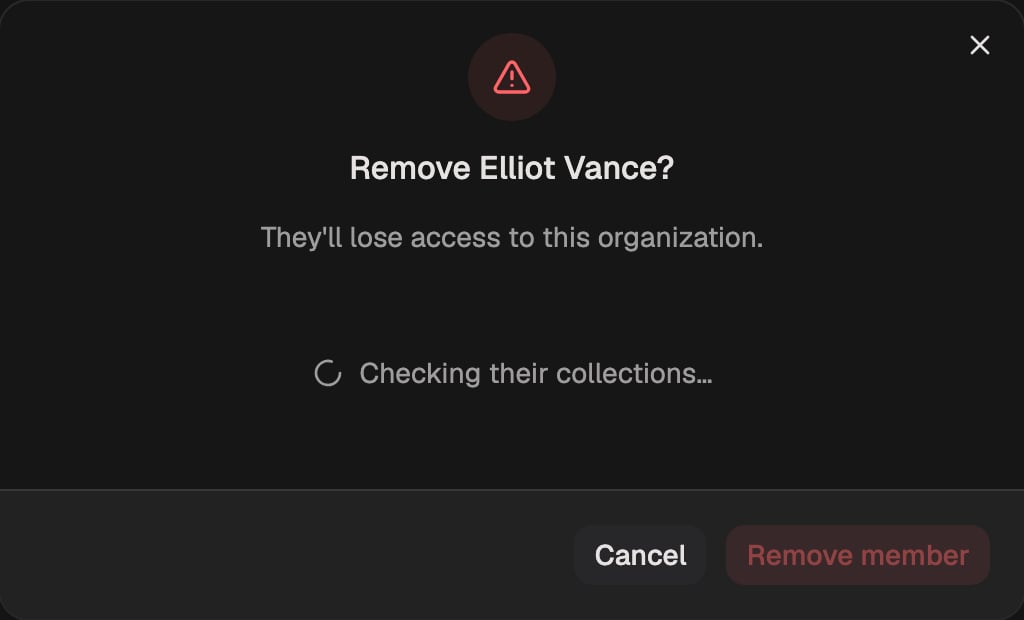
Find the person in the Members list and click Remove. 1Archive checks
what they own before showing you anything else.
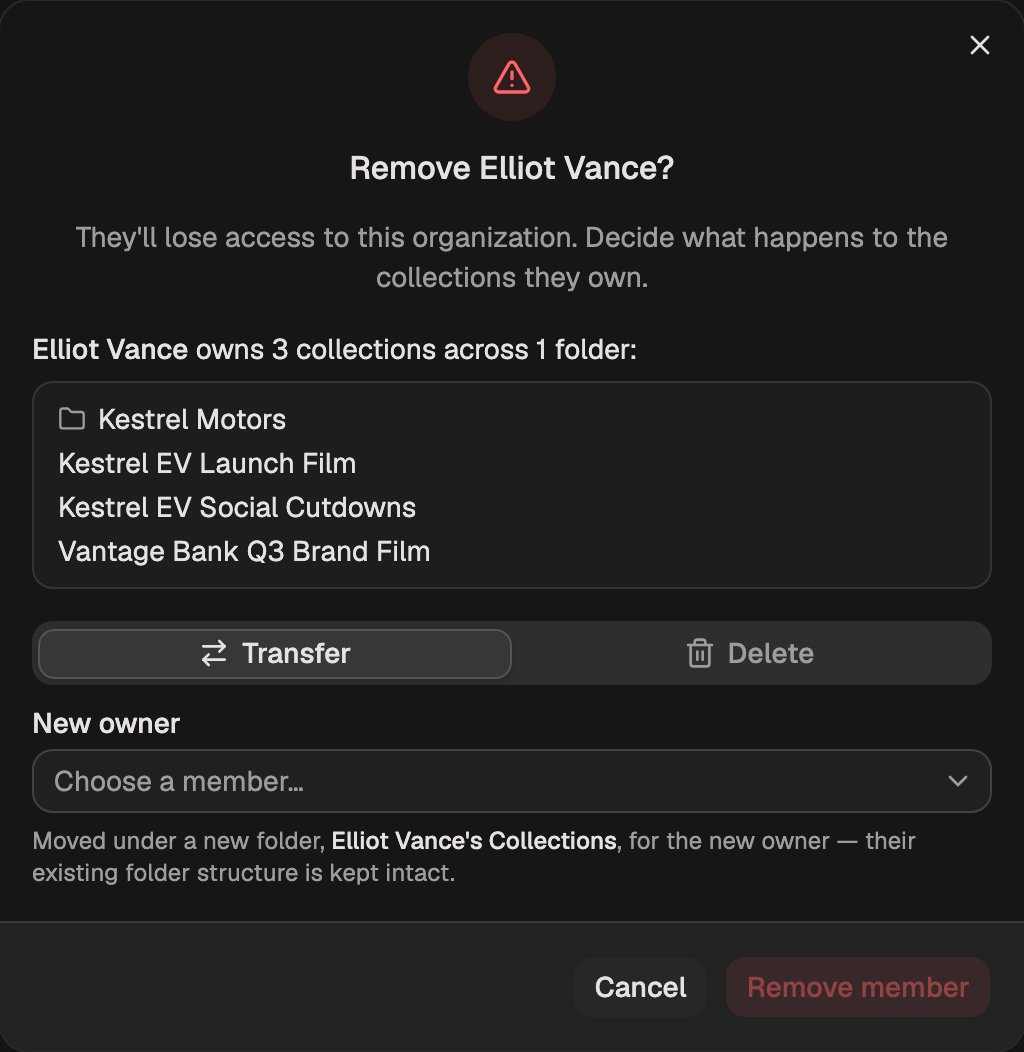
Review what they own
The dialog lists every Collection this person owns, and the folders those
Collections sit in. Each one needs somewhere to go, because a Collection has
exactly one Owner and theirs is about to leave.
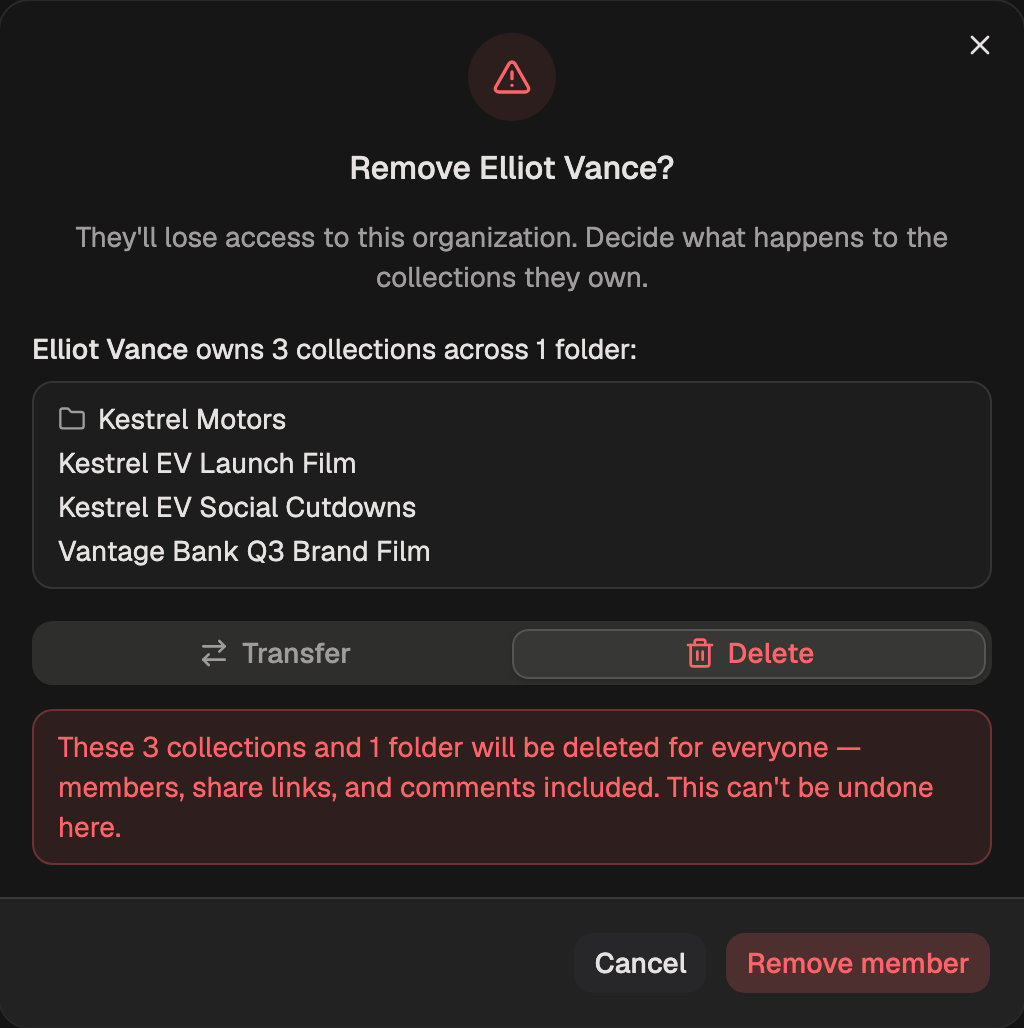
Transfer or delete
Pick Transfer and choose the new Owner. The Collections move into a new
folder named after the departing person, and their internal folder structure
stays exactly as it was. Pick Delete instead and those Collections are
deleted for everyone, including their members, share links, and comments.
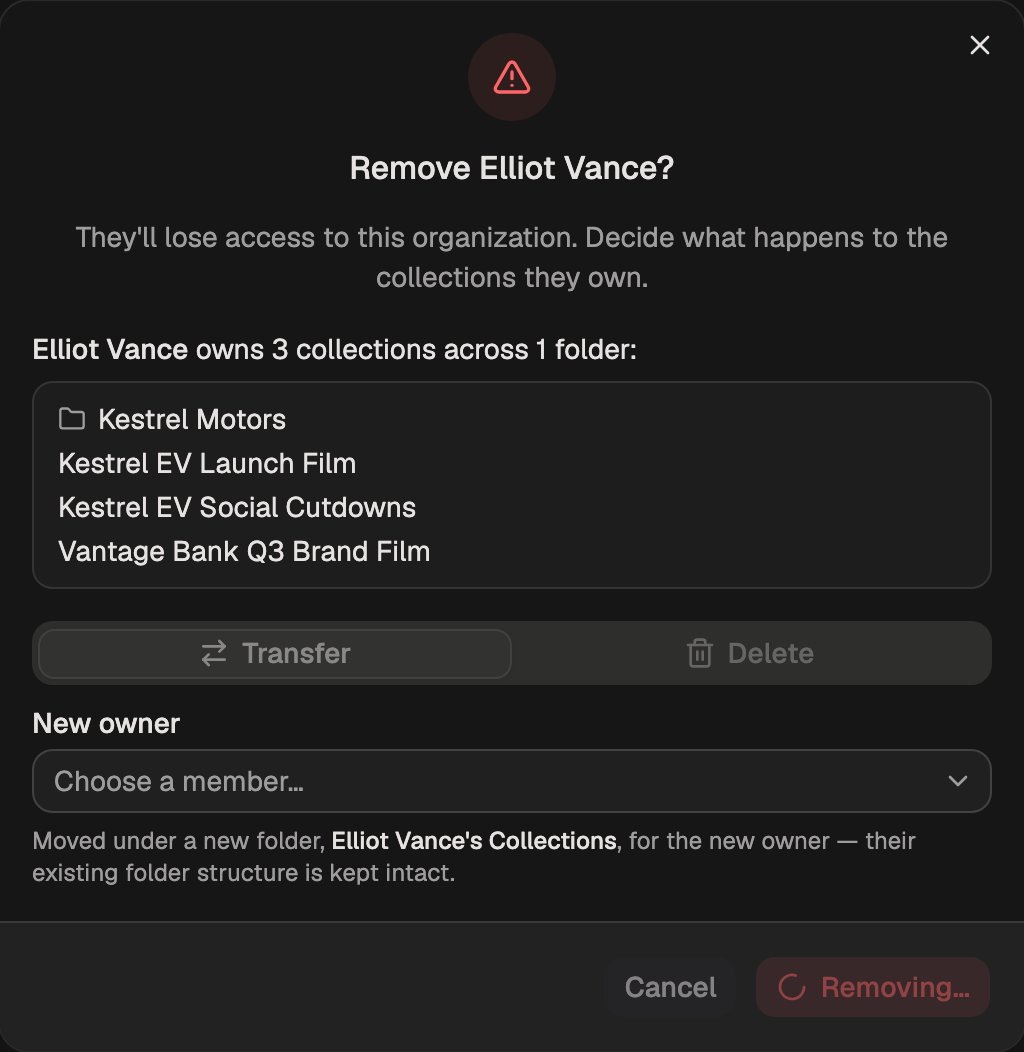
Confirm
1Archive hands off or deletes those Collections, revokes the rest of the
person’s access, ends their sessions, then removes them from the
organization. They can’t sign back in. The confirmation tells you what was
revoked.
Ending their sessions is part of the removal, not a separate thing to remember. Every session they hold in your organization is revoked as the removal goes through, on every device they were signed in on, so their apps stop being able to renew and they can’t sign back in. You don’t have to sign them out separately or wait for anything to expire on its own. If they belong to other organizations in 1Archive, those sessions carry on: only their access to yours ends.
Collections they were only a member of need nothing from you. They’re dropped from those, and the Collection carries on with its Owner untouched.
Nothing in this flow notifies the departing person, so you can run it before the conversation happens if the departure is confidential. If you need to look inside a Collection first, to save the work or check what’s in there, promote yourself into it. That writes a permanent entry in the activity log with your reason attached, and Owners & Admins covers how it works.
What removal takes away
Removing someone revokes every share they held in your organization, not only the Collections they owned:
- Collections they were on. Every Collection where they were an Admin, Editor, or Viewer. They’re dropped from all of them.
- Sources shared with them. Every Source and folder shared with them directly.
- Teams they were on. They come off the roster of any team they belonged to, and the Source access those teams carried goes with it.
- Share links they created. Every link they made, in every Collection, stops opening.
All of that happens on both paths, Transfer and Delete, and it happens whether or not the person owned a single Collection. Owning nothing says nothing about the rest of someone’s access.
The share links are the part worth knowing about. A public link opens for
anyone holding the URL, with no account and no sign-in, so a link made by
someone who has left would otherwise keep opening that Collection for whoever
still has it. 1Archive revokes those links during the removal, so there’s no
sharing panel left to clean out by hand.
Removing someone doesn’t erase their history. Their name stays on the things they created, for audit, and a name on its own never grants anyone access.
What happens on their computer
Within about five minutes, the desktop app on their computer signs itself out and erases its local copy of your organization’s catalog: the file names, metadata, and thumbnails that had synced to that machine. They land back on the login screen with nothing to browse. This happens whether you removed them in Members or their account was suspended or deleted at your identity provider.
The app has to reach 1Archive to find out the session is gone, so a computer that’s switched off or off the network clears its copy the next time it connects. If it stays offline for longer than a week, the app stops letting them in on its own, and the copy stays on disk.
If your team signs in through SSO
If your organization signs in through an identity provider such as Google Workspace or Okta, your IT team usually starts a departure there. Three things are worth knowing about how that lands in 1Archive.
Suspending or deleting their account ends their access. Their sessions stop, they can’t sign back in, and they come off any team that came from your directory.
Changing their password doesn’t. A password change isn’t a change to your directory, so nothing about it reaches 1Archive. The session they already have keeps renewing on its own, which means someone who leaves the desktop app running carries on working in it. Suspend or delete the account instead.
To sign someone out without removing them, open Members in the admin console and use the sign-out button on their row. It ends their open sessions on every device, and that’s all it does: they keep their access and can sign straight back in. Reach for it when a laptop goes missing, when a password has been shared, or when a password change has already happened and you want the open session gone with it.
Whichever route you take, still remove the person in Members when they’re actually leaving. Suspending their account ends the session, but it doesn’t decide who inherits their work or clear the links they made.
If you bring them back
Adding the same person back to the organization gives them a seat and nothing else. The Collection shares, Source shares, team memberships, and links they had before are gone, and none of it returns with them.
That’s worth planning for on a re-hire, or when a contractor comes back for a second project. Whoever adds them back grants their access again from scratch, the same as for any new member.
Revoking access is permanent. There’s no undo and no restore. If you remove the
wrong person, you have to re-share everything they need by hand.