

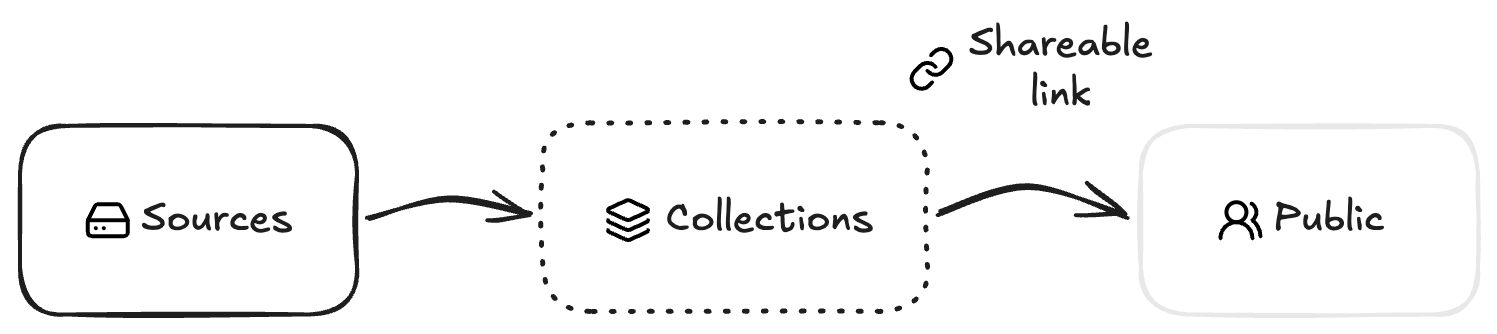

The two ways to share a Source or folder
Pick whichever fits the material:- Make it visible to the whole org. Every person in your organization can see it. This is the right call for anything not sensitive: reference material, public-facing work, stock libraries.
- Add specific people to it. You pick who’s on the list and what they can do (Can Edit or Can View). This is the right call for client work, unfinished pieces, or anything that shouldn’t be seen by the full team.
Marketing folder with Can Edit, and Peter gets Can Edit on every folder and every Source inside Marketing. No extra clicks.
When a folder and the Sources inside it disagree
Every folder and Source is set one of two ways: visible to the whole org, or limited to specific people. Nest them and two rules decide who can see what. The more private setting wins as you go down. Limit a folder to specific people and everything inside rides along, even a Source someone set to visible to the whole org. Lock theSeverance Package folder and every Source in it is locked too. It runs the other way as well: a folder that’s visible to the whole org never pries open a Source inside it that you’ve limited to specific people. That Source stays on its own list.
Adding people still reaches all the way in. Put someone on a folder’s list and they get everything inside it, including the Sources you’ve kept private. That’s how you hand a team a locked folder: limit the folder, add the team, done. You never touch the Sources one by one.
So a locked folder is a real wall. Nothing leaks out because a folder above it is open, and nothing slips in because a Source inside it was left open. The only way in is to be on the list, or on the list of a folder that holds it.
What the two share roles let you do
A person’s role on a Source is set by the highest share they have anywhere above it. If you’re added to the
Marketing folder as Can View and then added to one Source inside it as Can Edit, you have Can Edit on that one Source and Can View on the rest.
What a share actually looks like to the recipient
This is the part that trips people up, so it’s worth spelling out: when you share a Source that lives a few folders deep, the person you’ve shared it with sees the folders on the way to it, but nothing else.- They can walk through the folders leading down to their share, like a breadcrumb trail.
- They can’t see any sibling folders or Sources along the way.
- They can’t read the contents of those breadcrumb folders. Only the names show, so they have a way in.
Scenario 1: a single Source shared deep in the tree
The full catalog:Clients down to Discovery, but the breadcrumb folders stay closed. No file list inside Clients, Initech, or 1999 TPS Reports. He has no idea that Y2K Recovery Plan and Initrode exist.
Scenario 2: a whole folder shared
Sometimes it’s easier to share a whole folder than pick Sources one by one. Drop a person on a folder, and the share covers every Source and sub-folder inside it, now and in the future. The full catalog:TPS Portal Redesign folder. He can add new Sources to it, rename the sub-folders, and move files around. He still doesn’t see Legacy Intranet Archive or Intern Orientation 1999. Those were never shared.
Scenario 3: two shares that overlap
When someone has more than one share that covers the same Source, the highest role wins. 1Archive never quietly lowers access. The full catalog:Initech, because the folder share gives her Can View on all of them. Inside Discovery, she also has Can Edit because of the direct share, which outranks the folder-wide Can View, so Can Edit is what applies there. Anywhere outside Discovery but still under Initech, she’s read-only.
Who can change the catalog structure
Moves, renames, and deletes touch the folder tree, so they’re tied to write access:- Adding, renaming, or deleting a folder or a Source needs Can Edit on it.
- Moving a folder or a Source into another folder, or back to the top level, is limited to Owners and Admins, whatever share someone holds. A move can change who sees a Source, because a restricted folder keeps everything inside it private, and each move is recorded in the audit log.
- Making a new top-level folder (one that sits at the root, not inside any other folder) is limited to Owners, Admins, and Editors in the org.